In this article, we'll discuss how to set up a Hub and Spoke architecture on Azure using VPN connections, a PFSense router, and Azure routing tools.
Target Topology
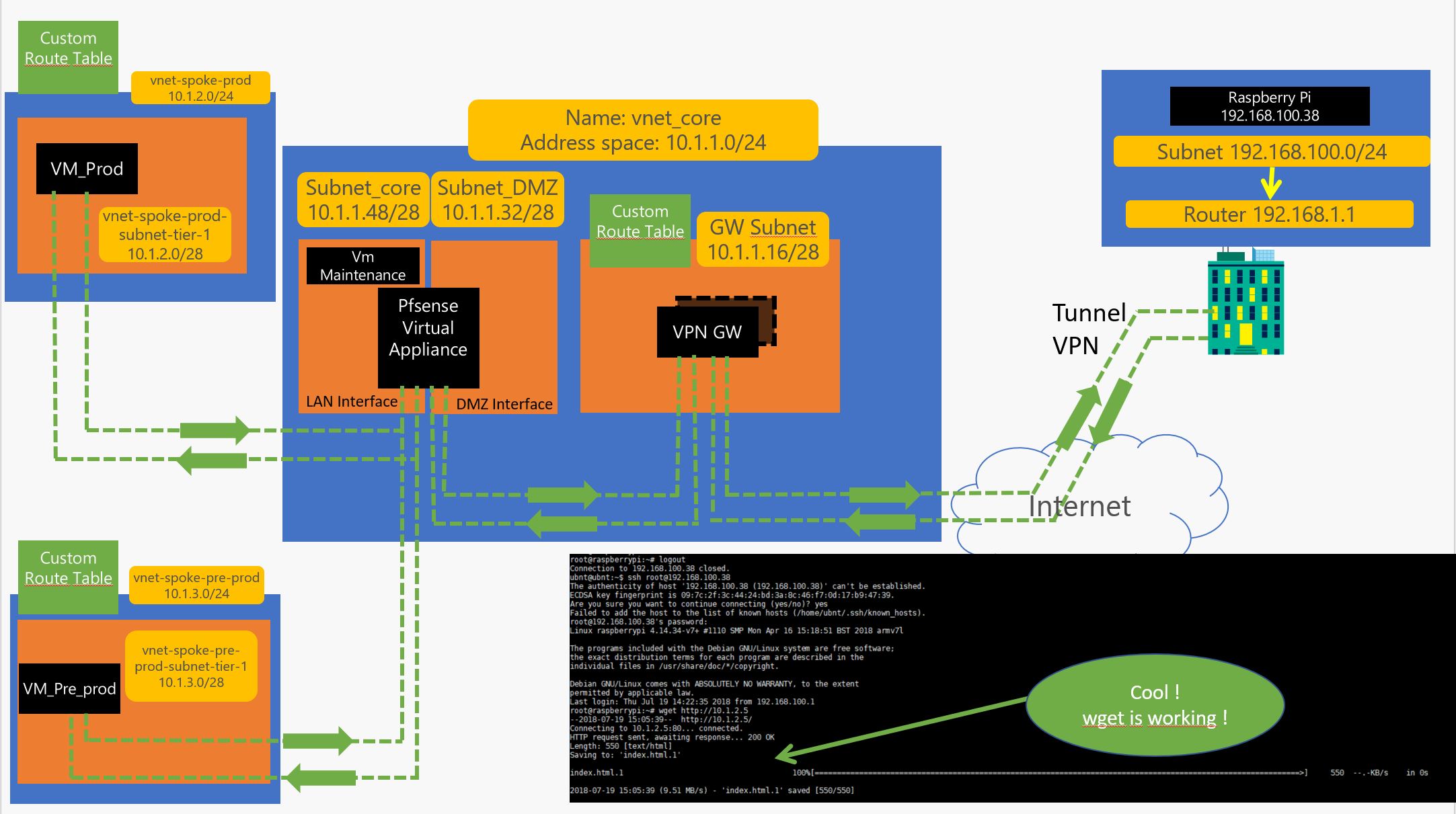
This guide builds on a previous article about VPN sessions and will review key concepts.
Part 1: Build the Shared Hub Infrastructure
1.1 Create Core Infrastructure
First, let's build the shared environment on Azure (Resource Group, VNet, and storage for logs):
#HUB_SHARED_CORE_INFRA
az group create --resource-group RG_CORE_INFRA --location westeurope
az network vnet create --resource-group RG_CORE_INFRA --location westeurope \
  --name vnet_core --address-prefix 10.1.1.0/24
az storage account create --location westeurope --name moustorcoreinfra \
  --resource-group RG_CORE_INFRA --sku Standard_LRS
1.2 Split the Virtual Network into Subnets
#HUB_SHARED_CORE_INFRA - Create Subnets
az network vnet subnet create --address-prefix 10.1.1.0/28 --name default \
  --resource-group RG_CORE_INFRA --vnet-name vnet_core
az network vnet subnet create --address-prefix 10.1.1.16/28 --name GatewaySubnet \
  --resource-group RG_CORE_INFRA --vnet-name vnet_core
az network vnet subnet create --address-prefix 10.1.1.32/28 --name subnet_DMZ \
  --resource-group RG_CORE_INFRA --vnet-name vnet_core
az network vnet subnet create --address-prefix 10.1.1.48/28 --name subnet_core \
  --resource-group RG_CORE_INFRA --vnet-name vnet_core
1.3 Build the PFSense NVA
Create a Network Virtual Appliance using PFSense (default login/password: admin/pfsense):
AdminPassword="M@nP@ssw@rd!"
az network nic create --resource-group RG_CORE_INFRA --name pf-sense-nva-2-nic-2 \
  --vnet-name vnet_core --subnet subnet_DMZ --ip-forwarding true \
  --private-ip-address 10.1.1.37
az network nic create --resource-group RG_CORE_INFRA --name pf-sense-nva-2-nic-1 \
  --vnet-name vnet_core --subnet subnet_core --ip-forwarding true \
  --private-ip-address 10.1.1.53
az vm create --resource-group RG_CORE_INFRA --name pf-sense-nva-2 \
  --admin-password $AdminPassword --admin-username demo \
  --nics pf-sense-nva-2-nic-1 pf-sense-nva-2-nic-2 \
  --image PFSENSE-IMAGE --size Standard_DS2_v2 --os-disk-size-gb 32 --no-wait
az vm boot-diagnostics enable --resource-group RG_CORE_INFRA --name pf-sense-nva-2 \
  --storage https://moustorcoreinfra.blob.core.windows.net
1.4 Create Maintenance VM in Core Area
AdminPassword="M@nP@ssw@rd!"
az network nic create --resource-group RG_CORE_INFRA --name win2k-16-maint-nic-1 \
  --vnet-name vnet_core --subnet subnet_core --ip-forwarding true \
  --private-ip-address 10.1.1.52
az vm create --resource-group RG_CORE_INFRA --name win2k-16-maint \
  --image win2016datacenter --admin-username demo --admin-password $AdminPassword \
  --nics win2k-16-maint-nic-1 --size Standard_DS2_v2
az vm boot-diagnostics enable --resource-group RG_CORE_INFRA --name win2k-16-maint \
  --storage https://moustorcoreinfra.blob.core.windows.net
1.5 Create VPN Gateway and Tunnel
This step takes approximately 20 minutes in the background:
#CREATE VPN GATEWAY AND VPN CONNECTION
az network public-ip create --resource-group RG_CORE_INFRA --name PuIPVPNGW \
  --dns-name publicipvpnconnexionaddress --allocation-method Dynamic
az network local-gateway create --gateway-ip-address 88.88.88.88 --name Site2 \
  --resource-group RG_CORE_INFRA --local-address-prefixes 192.168.0.0/16
az network vnet-gateway create --resource-group RG_CORE_INFRA --name SPOCKVPNGW \
  --public-ip-address PuIPVPNGW --vnet vnet_core --gateway-type Vpn \
  --vpn-type RouteBased --sku Basic --no-wait
az network vpn-connection create --resource-group RG_CORE_INFRA --name hometoAzure \
  --vnet-gateway1 SPOCKVPNGW -l westeurope --shared-key PasswordToBeChanged \
  --local-gateway2 Site2
1.6 On-Premises Router VPN Configuration
For UbiquitiEdgeOS or any StrongSwan-based VPN (like VyOS):
configure
set vpn ipsec auto-firewall-nat-exclude enable
set vpn ipsec ike-group FOO0 key-exchange ikev2
set vpn ipsec ike-group FOO0 lifetime 28800
set vpn ipsec ike-group FOO0 proposal 1 dh-group 2
set vpn ipsec ike-group FOO0 proposal 1 encryption aes256
set vpn ipsec ike-group FOO0 proposal 1 hash sha1
set vpn ipsec esp-group FOO0 lifetime 27000
set vpn ipsec esp-group FOO0 pfs disable
set vpn ipsec esp-group FOO0 proposal 1 encryption aes256
set vpn ipsec esp-group FOO0 proposal 1 hash sha1
set vpn ipsec site-to-site peer 7.7.7.7 authentication mode pre-shared-secret
set vpn ipsec site-to-site peer 7.7.7.7 authentication pre-shared-secret <PASSWORD>
set vpn ipsec site-to-site peer 7.7.7.7 connection-type respond
set vpn ipsec site-to-site peer 7.7.7.7 description ipsec
set vpn ipsec site-to-site peer 7.7.7.7 local-address 192.168.1.1
set vpn ipsec site-to-site peer 7.7.7.7 remote-address 7.7.7.7
set vpn ipsec site-to-site peer 7.7.7.7 ike-group FOO0
set vpn ipsec site-to-site peer 7.7.7.7 vti bind vti0
set vpn ipsec site-to-site peer 7.7.7.7 vti esp-group FOO0
set interfaces vti vti0
set firewall options mss-clamp interface-type vti
set firewall options mss-clamp mss 1350
set protocols static interface-route 10.1.0.0/16 next-hop-interface vti0
commit ; save
Part 2: Create Production Spoke
2.1 Create Production Resources
#SPOKE_PROD
az group create --resource-group SPOKE_PROD --location westeurope
az network vnet create --resource-group SPOKE_PROD --location westeurope \
  --name vnet-spoke-prod --address-prefix 10.1.2.0/24
az storage account create --location westeurope --name moustorprod \
  --resource-group RG_CORE_INFRA --sku Standard_LRS
2.2 Create Production Environment with Load Balancer
#CREATE Network Security Group
az network nsg create --resource-group SPOKE_PROD --name NGS-generic-linux-N-tier-1

#Create NSG Rules for ports 22, 80, 8080, 3306
az network nsg rule create --resource-group SPOKE_PROD --nsg-name NGS-generic-linux-N-tier-1 \
  --name NGS-generic-linux-N-tier-1-rule-22_inbound --protocol tcp \
  --direction inbound --source-address-prefix '*' --source-port-range '*' \
  --destination-address-prefix '*' --destination-port-range 22 --access allow --priority 1000

# ... (repeat for ports 80, 8080, 3306)

#CREATE SUBNET AND LOAD BALANCER
az network vnet subnet create --address-prefix 10.1.2.0/28 \
  --name vnet-spoke-prod-subnet-tier-1 --resource-group SPOKE_PROD \
  --vnet-name vnet-spoke-prod --network-security-group NGS-generic-linux-N-tier-1

az network lb create --resource-group SPOKE_PROD \
  --name load-balancer-front-end-web --private-ip-address 10.1.2.4 \
  --subnet vnet-spoke-prod-subnet-tier-1 --vnet-name vnet-spoke-prod \
  --backend-pool-name demo-front-from-tier-1-to-backend-pool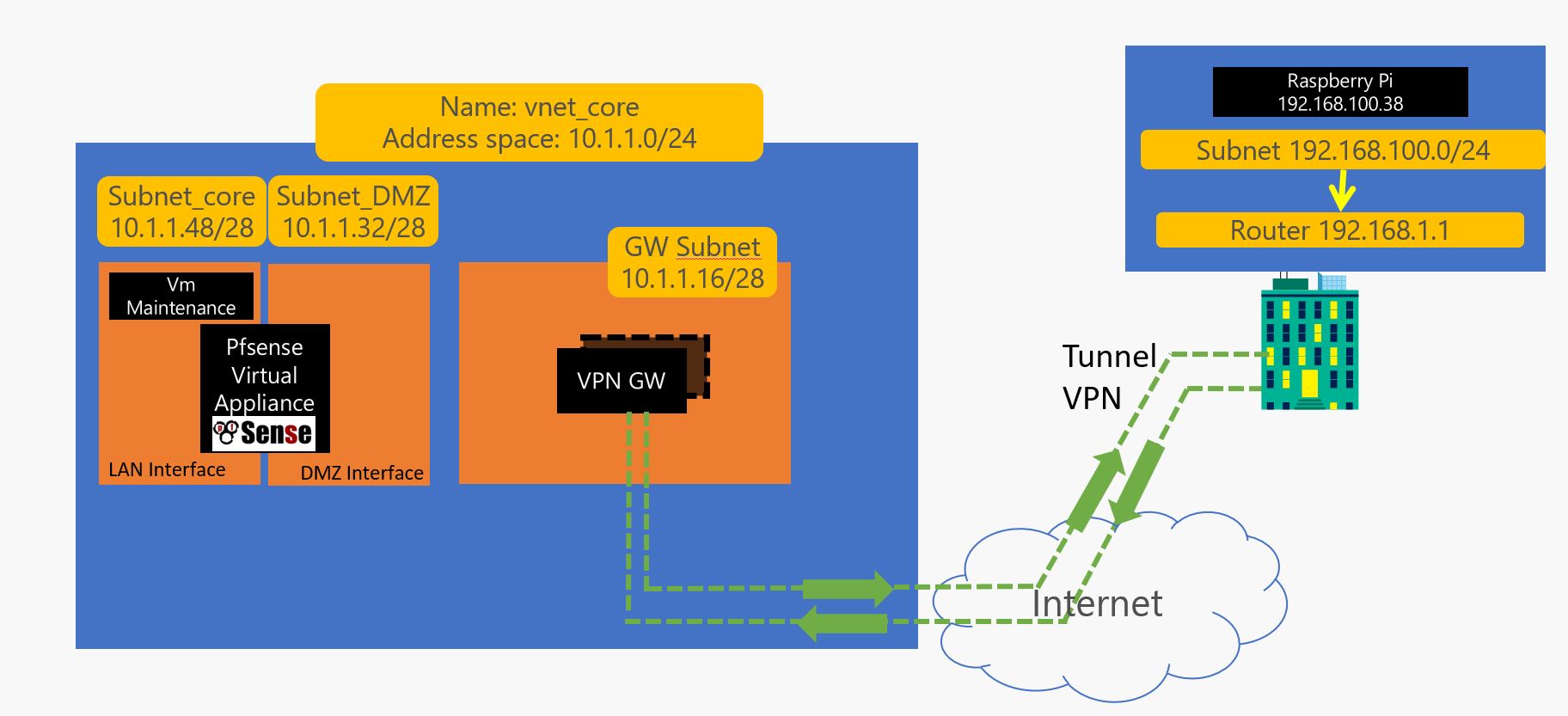
Part 3: Create Pre-Production Spoke
Similar to production, create pre-production resources with the same structure but different names (SPOKE_PRE_PROD, vnet-spoke-pre-prod, etc.).
Part 4: Configure VNet Peering and Routing
4.1 Create VNet Peering
#VNET_PEERING_CORE_TO_PROD
az network vnet peering create -g RG_CORE_INFRA -n PEERING_HUB_TO_PROD \
  --vnet-name vnet_core --remote-vnet-id vnet-spoke-prod --allow-vnet-access
az network vnet peering create -g SPOKE_PROD -n PEERING_PROD_TO_HUB \
  --vnet-name vnet-spoke-prod --remote-vnet-id vnet_core --allow-vnet-access

#VNET_PEERING_CORE_TO_PRE_PROD
az network vnet peering create -g RG_CORE_INFRA -n PEERING_HUB_TO_PRE_PROD \
  --vnet-name vnet_core --remote-vnet-id vnet-spoke-pre-prod --allow-vnet-access
az network vnet peering create -g SPOKE_PRE_PROD -n PEERING_PRE_PROD_TO_HUB \
  --vnet-name vnet-spoke-pre-prod --remote-vnet-id vnet_core --allow-vnet-access
4.2 Create Route Tables and User-Defined Routes (UDR)
#CREATE_ROUTE_TABLE_HUB_TO_ONPREM
az network route-table create --resource-group RG_CORE_INFRA \
  --name ROUTE_TABLE_HUB_TO_ONPREM

# Routes to force traffic through the PFSense NVA
az network route-table route create --name ROUTE_HUB_TO_ONPREM \
  --resource-group RG_CORE_INFRA --route-table-name ROUTE_TABLE_HUB_TO_ONPREM \
  --address-prefix 192.168.0.0/16 --next-hop-type VirtualAppliance \
  --next-hop-ip-address 10.1.1.37

az network vnet subnet update --vnet-name vnet_core --name GatewaySubnet \
  --resource-group RG_CORE_INFRA --route-table ROUTE_TABLE_HUB_TO_ONPREM
Part 5: PFSense Configuration
Remote desktop to the maintenance server (10.1.1.52) and access PFSense at 10.1.1.53.
Configure PFSense:
- Change the interface name from "WAN" to "DMZ"
- Allow LAN traffic on both interfaces
- Enable PING on both interfaces
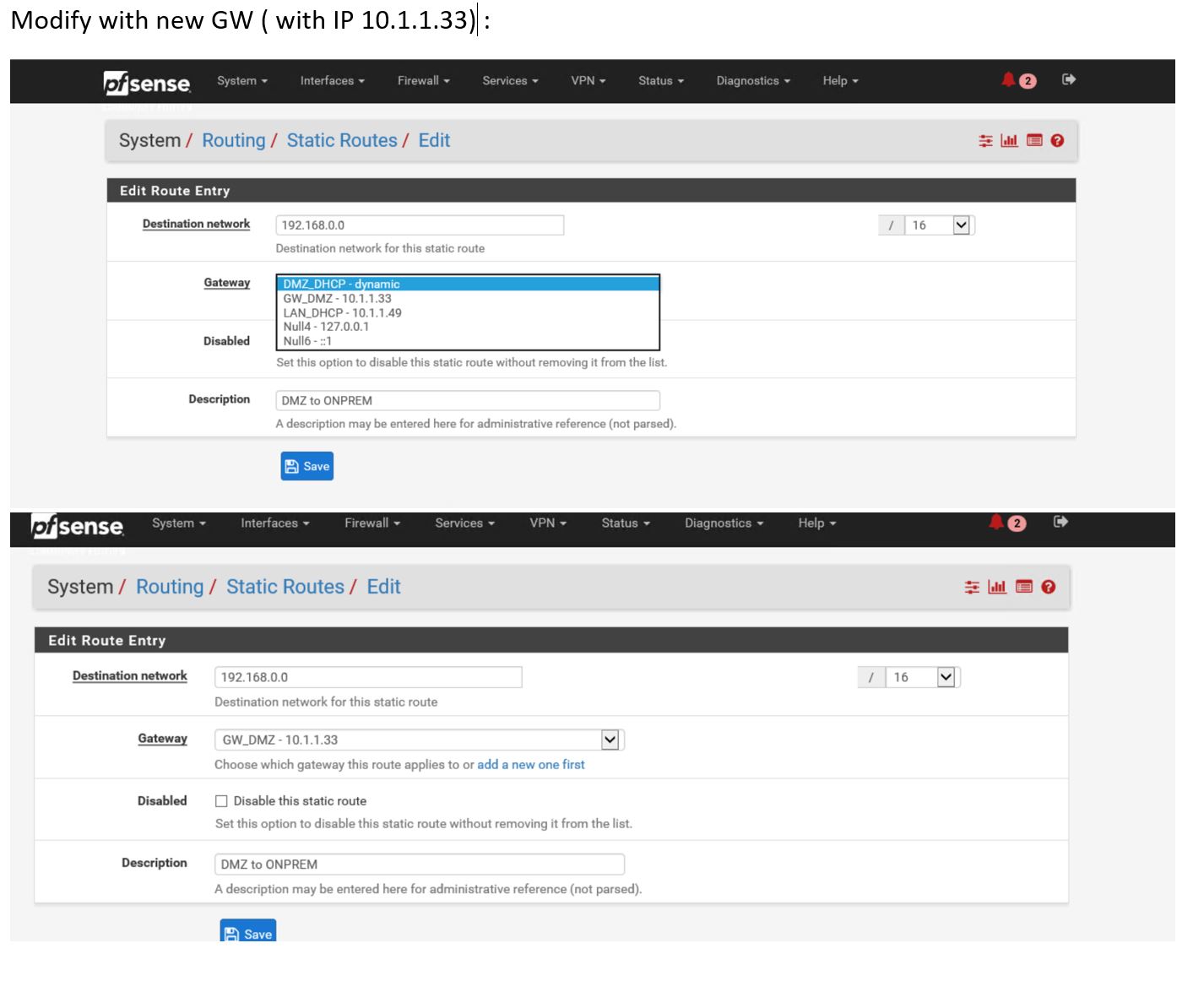
- Create routes pointing to the Azure gateway (10.1.1.33)
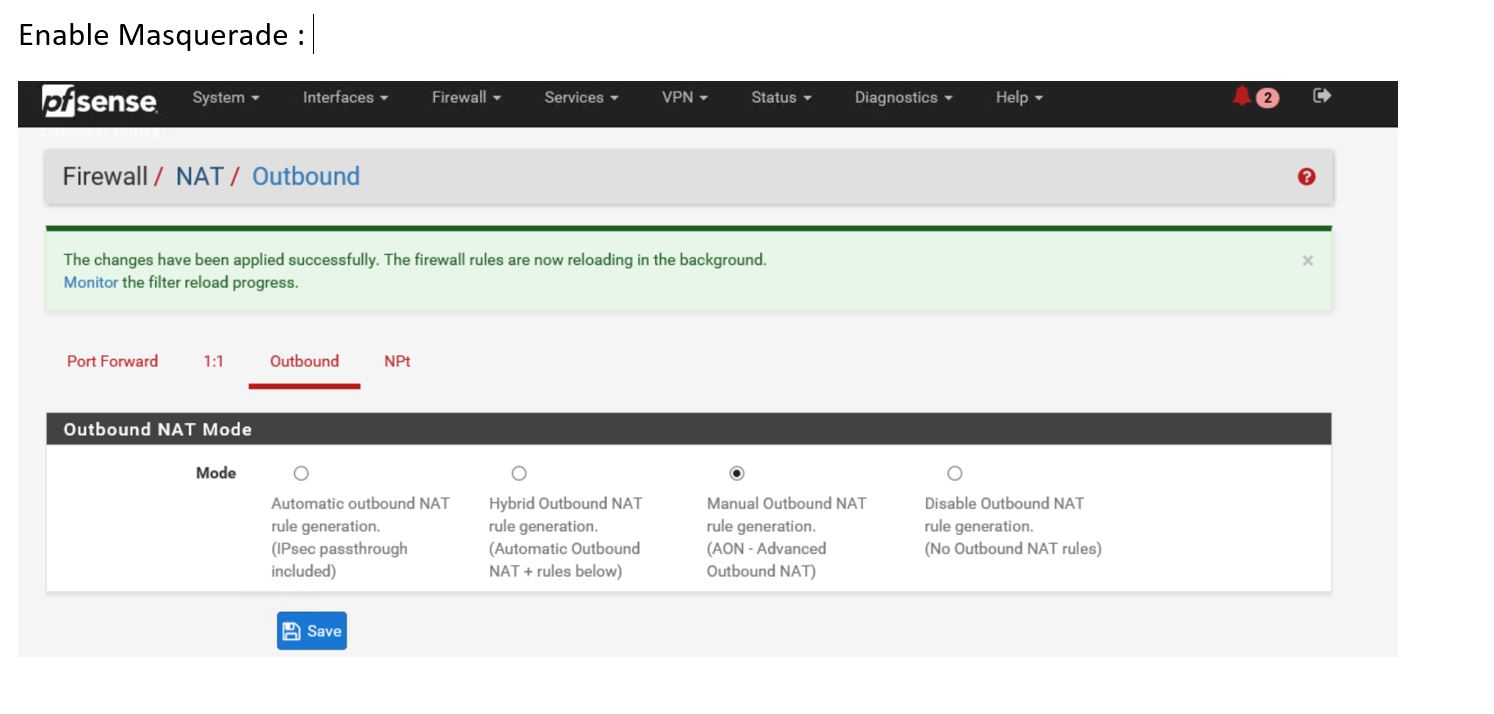
- Enable Masquerade for NAT
- Allow necessary ports (22, 80, 8080, 3306, etc.)
Result
Once configured, traffic flows through your Hub and Spoke architecture:
- Spokes communicate through the Hub via VNet Peering
- Traffic is routed through the PFSense NVA for security and control
- On-premises connectivity is established via VPN through the Hub
- Load balancers distribute traffic within each Spoke
The architecture is now complete and ready for production workloads!